
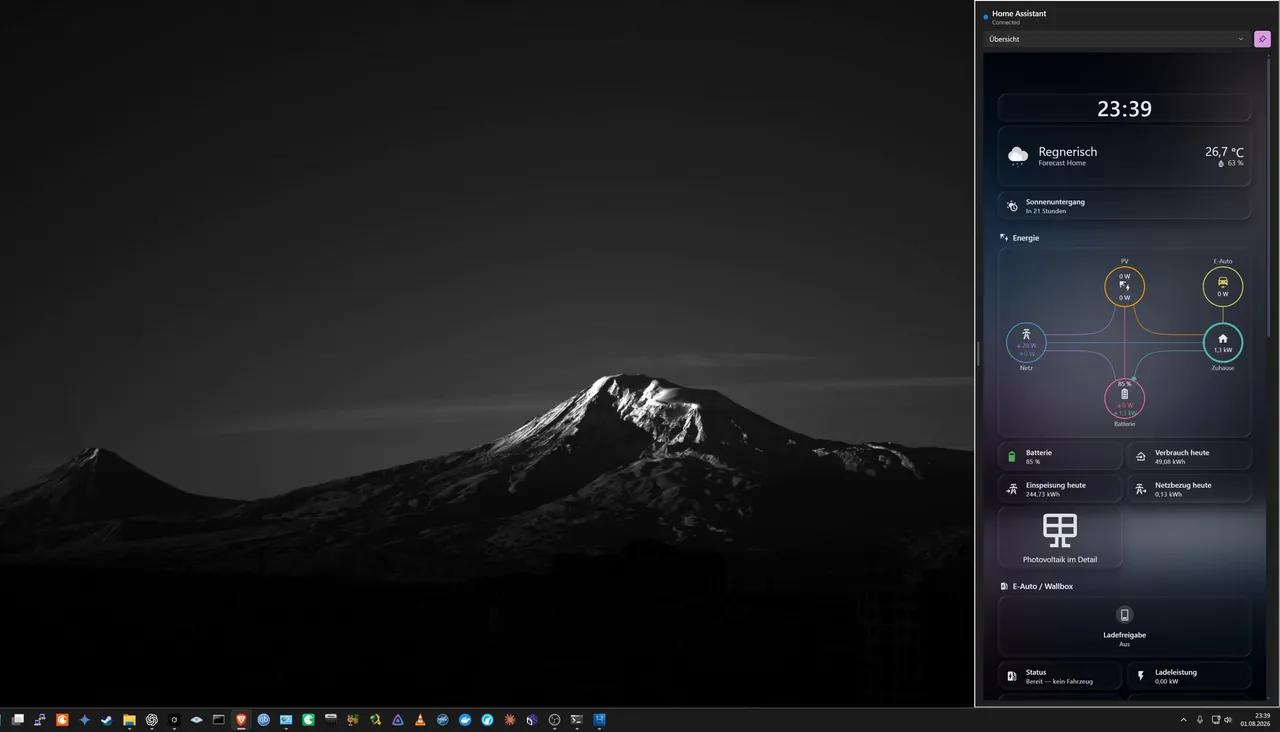
The quick panel
One hotkey in, same hotkey out.
- Slides over anything — even full-screen games
- Tiles auto-detected from your entities, zero setup
- Drag, resize 1×1–4×3, right-click for brightness / temperature / volume
Native Windows 11 app · Free and open source
Press Win Ctrl H — or any combo you pick — and your home slides in over whatever you are doing: live tiles, shortcuts, your real Lovelace dashboards.
irm https://raw.githubusercontent.com/Elias0505/ha-companion-windows/main/install.ps1 | iexPer-user install, no admin rights needed, about a minute. Run the same line again any time to update — your settings are kept.
WinUI 3 and .NET 9. Not Electron — only the Lovelace view uses WebView2.
AGPL-3.0. Every release is built by GitHub Actions from this source.
It talks to your Home Assistant directly. No account, no relay, no telemetry.
It uses Home Assistant's own mobile_app API. Nothing to set up in HA.
What you get
One panel, both directions, and a lot of boring reliability work underneath.
One hotkey in, same hotkey out.
Invisible until you need it.
Both directions. No MQTT, no YAML.
WinUI 3 + .NET 9 — native, not Electron.
Push, not polling.
Boring on purpose.
Explore the app
Real screenshots from a real Home Assistant instance — same order as the app's own navigation.
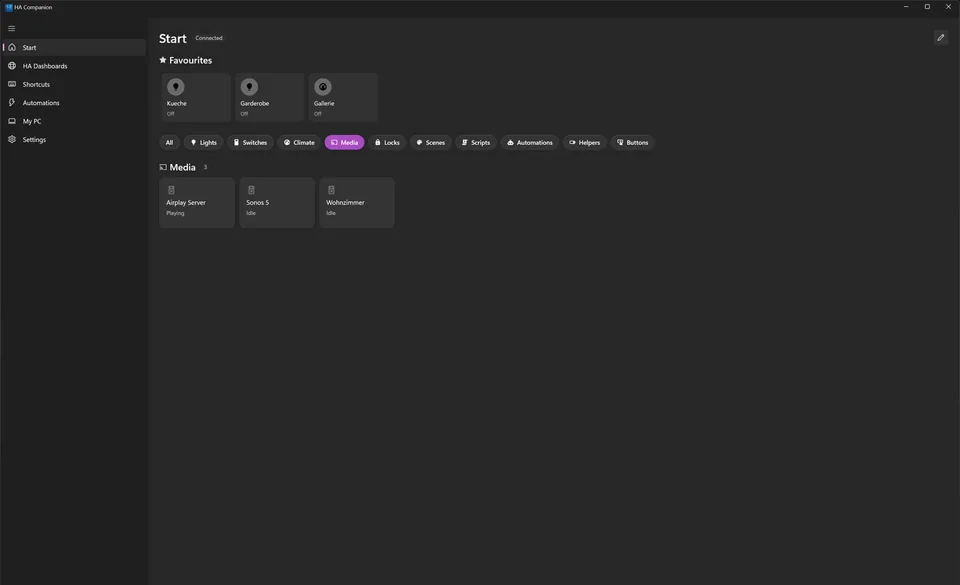
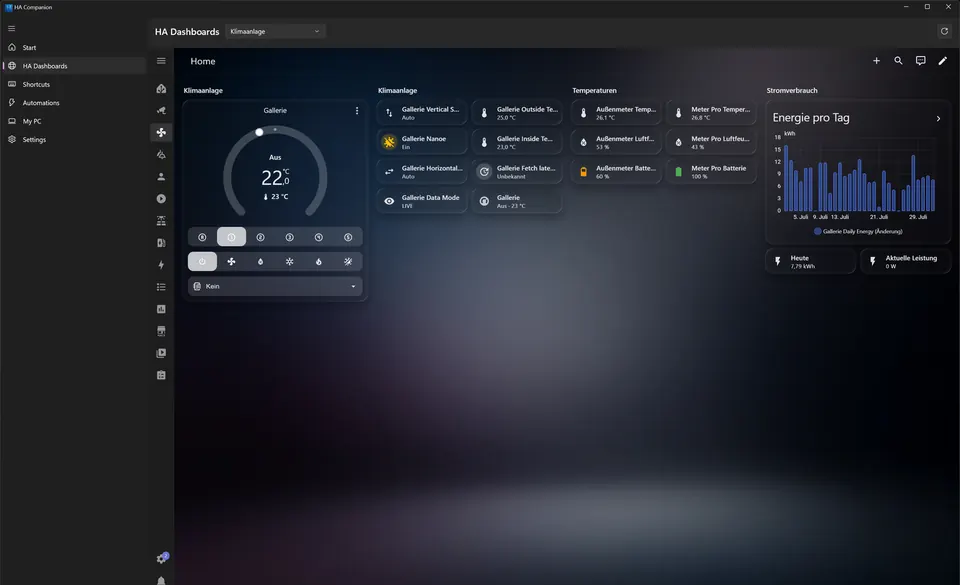
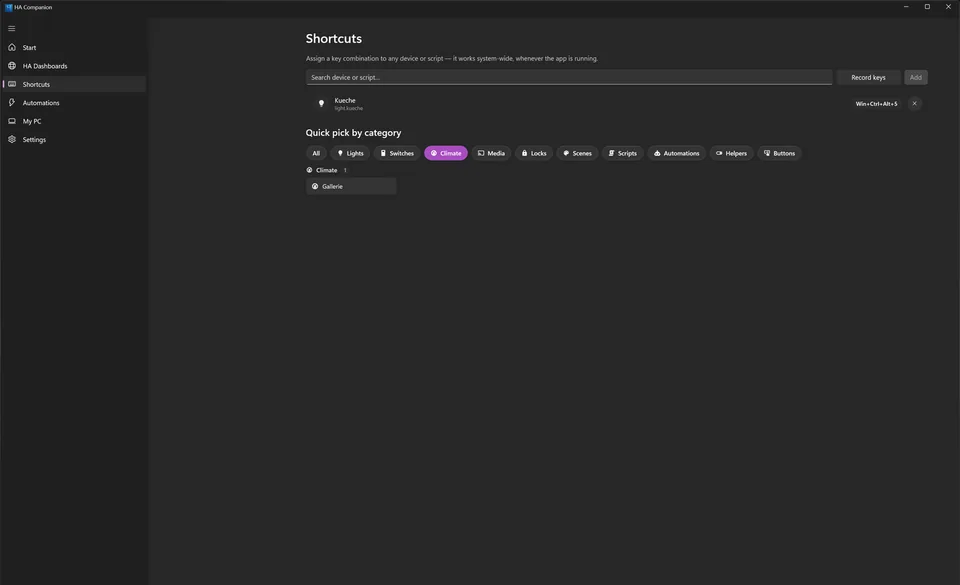
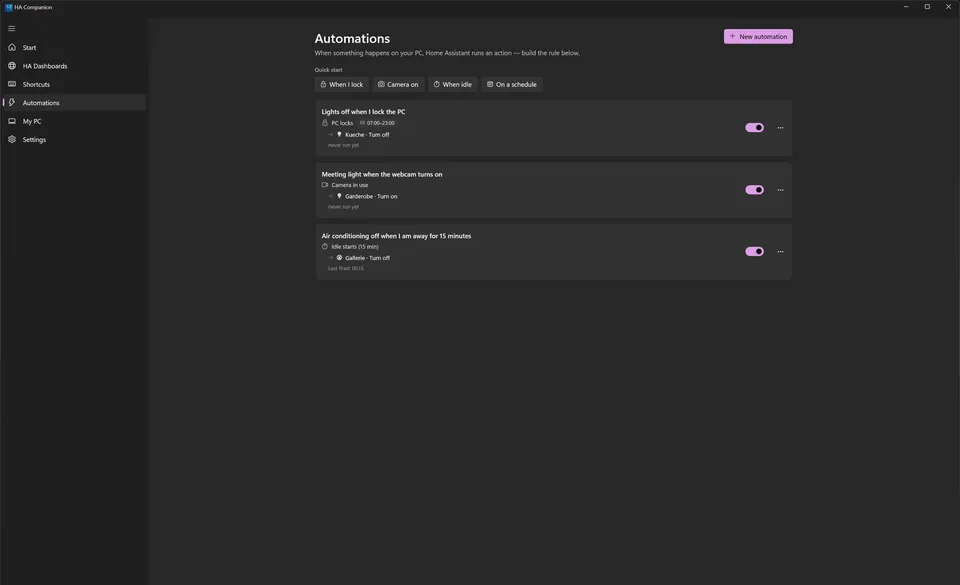
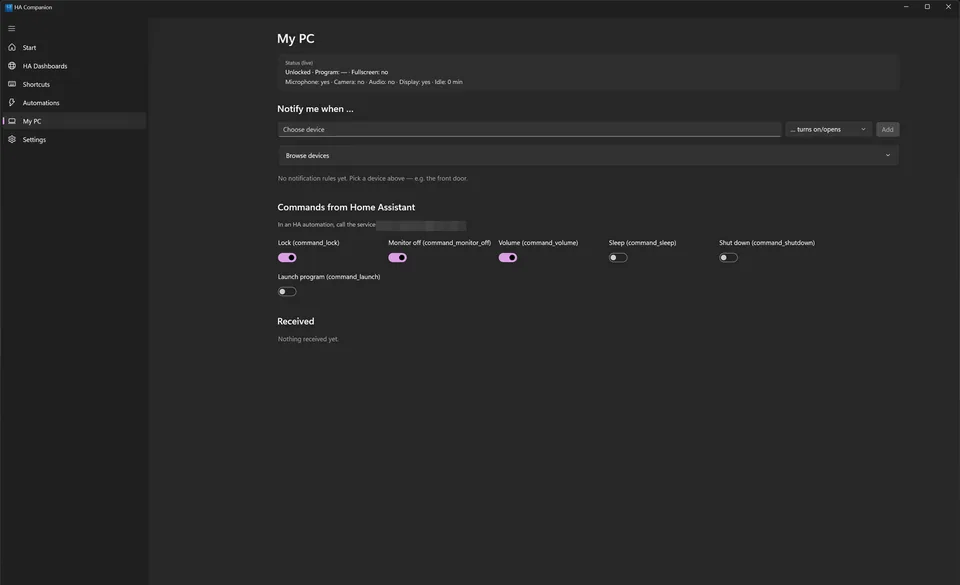
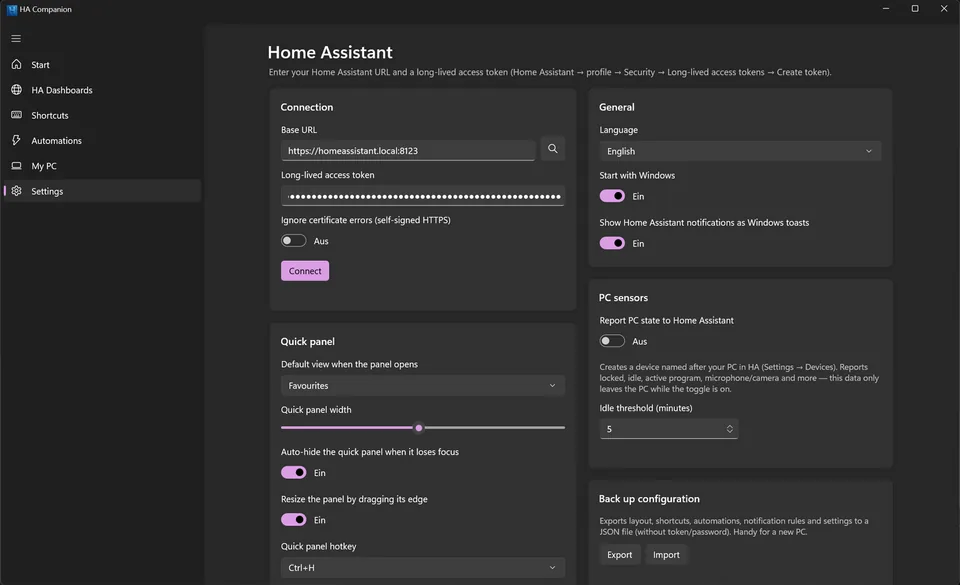
All screenshots, with notes → docs/SCREENSHOTS.md
The part other clients don't have
Most companions let you look at your home. This one lets your home and your PC react to each other — over Home Assistant's own mobile_app API, so there is no broker to run and nothing to write in YAML.
Built in the app, in a form that looks like the rule you were going to describe out loud:
Triggers include lock and unlock, sleep and resume, idle, shutdown, full-screen apps, the microphone or camera going live, and a schedule. Every rule can be tested with one click.
Switch on Report PC state and your PC registers itself as a device. Then this works from any HA automation:
service: notify.mobile_app_my_pc
data:
  title: "Doorbell"
  message: "Someone is at the door"
  data:
    actions:
      - action: "OPEN"
        title: "Unlock"
Toasts with action buttons come back as HA events. command_lock, command_sleep and five more control the PC — each behind a permission switch in My PC (volume and mute share one), and the risky ones (sleep, shutdown, launch) stay off until you enable them.
Get it
Paste this into PowerShell. It installs everything needed and launches the app — no admin rights, no Visual Studio, no setup wizard.
irm https://raw.githubusercontent.com/Elias0505/ha-companion-windows/main/install.ps1 | iexpowershell -NoProfile -Command "irm https://raw.githubusercontent.com/Elias0505/ha-companion-windows/main/install.ps1 | iex"It downloads install.ps1 from this repository and runs it. The script checks your Windows build, installs the Microsoft WebView2 Runtime via Microsoft's own bootstrapper if it is missing, copies a self-contained build to %LOCALAPPDATA%\Programs\HaCompanion, adds a Start-menu shortcut and an entry under Settings → Apps → Installed apps, and starts the app.
The app itself needs no administrator rights and writes nothing outside your user profile; only the one-time WebView2 Runtime install (Windows 10 without it) may show a UAC prompt. It also does not touch your PowerShell execution policy — the piped install command is not subject to it, so this line needs no -ExecutionPolicy Bypass. (Only the uninstaller, which Windows starts as a script file, runs with a per-process bypass; your stored policy is never changed.) Read the script first if you like — it is plain PowerShell: install.ps1.
Update — run the same line again. Your settings, tiles, shortcuts and rules are kept.
Uninstall — Settings → Apps → Installed apps → HA Companion for Windows → Uninstall. It removes the program folder, the Start-menu shortcut, the autostart entry and the notification registration, and asks once whether your settings and token should go too.
Start over — no uninstall needed: Settings → Reset to factory settings wipes the configuration, token, tiles, rules and logs and restarts the app in its first-run state.
Two things it deliberately leaves alone: the mobile_app device inside Home Assistant (only HA can delete that) and the WebView2 runtime (other apps share it).
Prefer a ZIP? Download the latest release.
Self-contained — the .exe bundles .NET 9 and the Windows App SDK.
Licensing
AGPL-3.0 is a deliberate choice, not a default: it keeps this code from being taken, closed and resold.
Use it, study it, share it, change it. If you distribute it or run a modified version as a network service, your complete corresponding source has to be available under the AGPL too.
Want to use this inside a closed-source or commercial product without the copyleft obligations? That needs a separate agreement — get in touch.
Issues and pull requests are welcome. Contributions are signed off (DCO) and dual-licensed so the commercial option above stays possible.
Questions
No. It is an independent client “for Home Assistant”, not affiliated with or endorsed by the Home Assistant project or Nabu Casa. “Home Assistant” is a trademark of its respective owners.
No. The app uses Home Assistant's own mobile_app API, the same one the official phone apps use. There is nothing to install or configure inside Home Assistant — you only create a long-lived access token.
No. The app talks to the Home Assistant URL you enter and to nothing else. There is no account, no relay server and no telemetry. This website has no analytics and makes no third-party requests either.
Because the binary is not code-signed yet — a certificate is a recurring cost for a free project. Click “More info” → “Run anyway”. Every release is built in public by GitHub Actions from this repository, and the installer is a readable PowerShell script.
In %LOCALAPPDATA%\HaCompanion\settings.json, encrypted with the Windows Data Protection API (DPAPI) and bound to your Windows user account. It is never written in plain text, and it is excluded from the backup export and the diagnostics report.
Yes — any URL the PC can reach, including HTTPS behind a reverse proxy or Nabu Casa. For a self-signed certificate there is an explicit “ignore certificate errors” switch, off by default.
A self-contained build in %LOCALAPPDATA%\Programs\HaCompanion, a Start-menu shortcut, and one entry under Settings → Apps → Installed apps so Windows can uninstall it properly. Settings live separately in %LOCALAPPDATA%\HaCompanion.
No services, no drivers, no scheduled tasks, nothing outside your user profile — and no administrator rights for the app itself (only a missing WebView2 Runtime may trigger one UAC prompt).
Settings → Apps → Installed apps → HA Companion for Windows → Uninstall. It asks once whether your settings and token should be removed too. If you only want a clean slate, Settings → Reset to factory settings inside the app does that without uninstalling. The mobile_app device in Home Assistant has to be deleted in Home Assistant.
Yes, under AGPL-3.0-only, with no paid tier, no ads and no data collection. A separate commercial licence exists only for people who want to build closed-source products on this code.
Support
You’re not joining for exclusive content, secret files, or special treatment.
You’re joining because you want more of my GitHub projects to exist.
Your support goes straight into fueling more code, more random repositories, more late-night commits, and more unfinished experiments that somehow still end up public.